
V380 Pro Smart Camera
1-Download APP
Search "V380 Pro" in the App Store or Google Play, or click the button below to download and install.
V380 Pro App DownloadElectronic manual
Use the V380 Pro App to scan the QR code on the camera to add the device and follow the instructions to view the electronic manual of the device.
2-Reset the Camera
1. Power on the camera. (For 4G camera, please ensure the SIM card has been inserted into the camera before power on.)
2. Press and hold the reset button for several seconds, the camera will prompt "Reset completed".
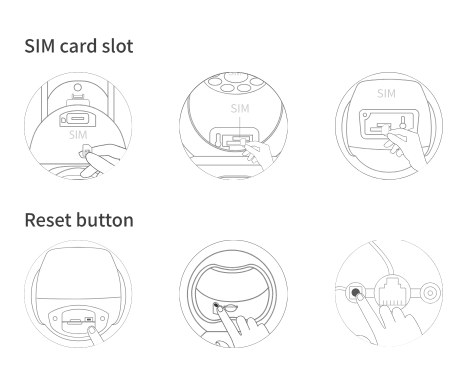
Note: The position of the reset button and SIM card slot is for reference only, depending on your device.
3-Add Camera
1. Open APP to register your account and log in.
2. Click the "+" icon and scan the QR code on the device.
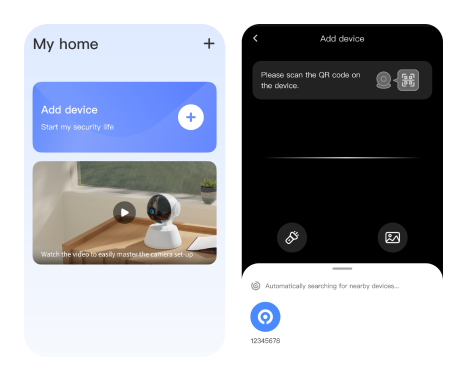
Note: Each APP version may be different, please follow the prompts in the latest version of APP to set up the camera.
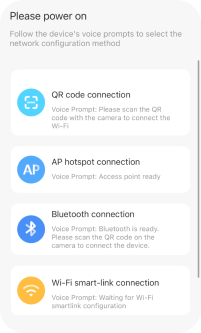
After scanning the QR code on the device, please select the corresponding network configuration method according to your network configuration interface.
1. Bluetooth network connection, please check step 5.1
2. QR code network connection, please check step 5.2
3. AP hotspot connection, please check step 5.3
1. Please check step 5.4
4-Solar-powered camera indicator light
1. Indicator is off: device is powered off or standby mode;
2. Slow flashing red light: device is ready for connecting;
3. Quick flashing red light: device is connecting to the router;
4. Solid yellow light: device has been connected to the Internet;
5. Flashing yellow light: device is connecting to the Internet. If the device cannot connect to the Internet normally, please check whether the router can access the Internet normally.
1. Indicator is off: device is powered off or standby mode;
2. Indicator is red: device is powered on and wakes up, but the network is unavailable;
3. Indicator is yellow: device is connected to the network;
4. Indicator red light flashes continuously: device can't detect the SIM card, please check whether the card is inserted;
5. Indicator red light flashes twice continuously: SIM card can be detected, but device can't connect to the Internet. Please check whether mobile data plan is available.
5.1-Bluetooth network connection
Note: Turn on your phone's Bluetooth before you add a camera
1. Connect your mobile phone to 2.4GHz Wi-Fi first.
2. Confirm the connected Wi-Fi and enter the password.
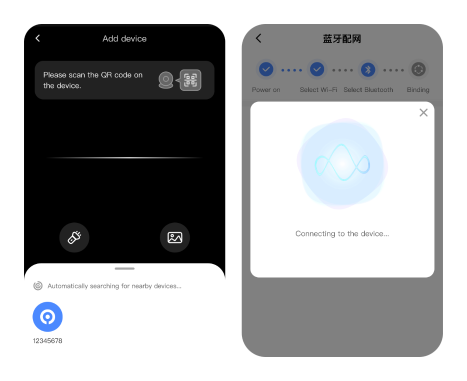
3. The device will prompt "Received configuration information, connecting".
Please be patient when using the device for the first time.
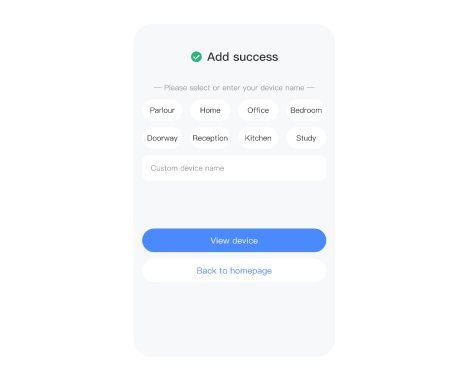
4. After the device prompts "Network connected", it means that the device has connected to the network and is successfully added.
5.2-QR code network connection
1. Please select the Wi-Fi that the device needs to connect to, and enter the correct password.
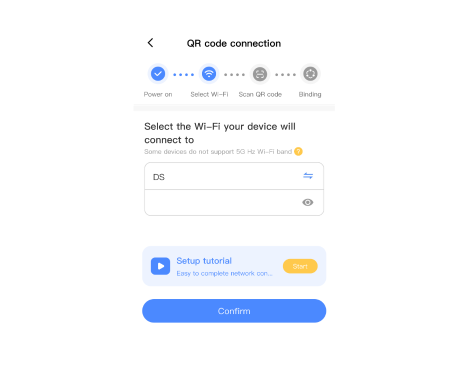
Note: The device only supports 2.4GHz Wi-Fi. Please select Wi-Fi without "5G". The name of Wi-Fi should not contain special symbols.
2. The APP will generate the QR code and then use camera to scan this QR code.
3. After the device identifies the QR code successfully, it will prompt "Network Configuration received, Connecting".
Please be patient when using the device for the first time.

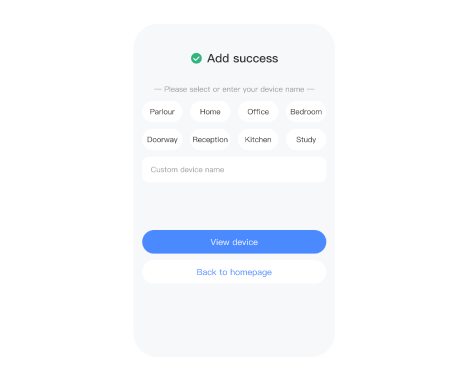
4. After the device prompts "Network connected" – "Bind successfully, camera ready", it means that the device has connected to the network and is successfully added.
5.3-AP hotspot connection
The device also supports the "AP hotspot connection". Please ensure the device has been reset.
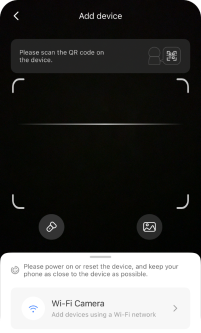
1. Click "+" in the upper right corner, swipe up the bottom and select "Wi-Fi Camera" – "AP hotspot connection".
2. Select the Wi-Fi that the device needs to connect to, and enter the correct password. (For iOS, if you want to connect to other Wi-Fi, please connect your mobile phone to the Wi-Fi you need and then return to the APP to refresh)
3. Connect to the hotspot of the device based on APP instructions.
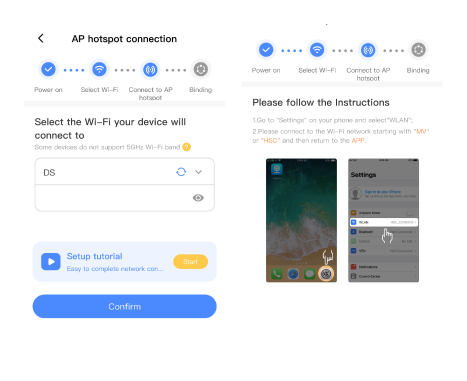
Note: You can find the corresponding ID on the device body tag which is for the hotspot's name.
4. After connecting to the device hotspot, return to the App and follow the system prompts to complete the setup.
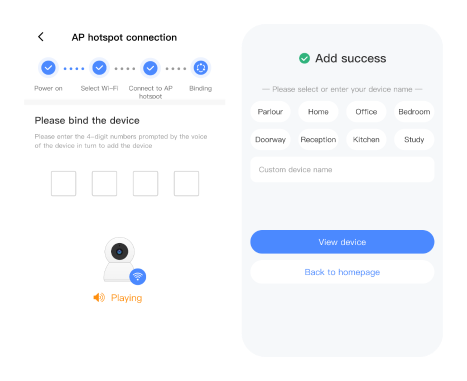
For some devices, no code is required.
5.4-Add 4G camera
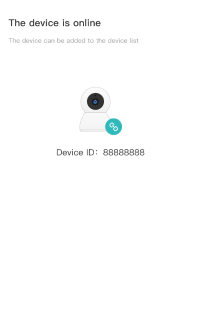
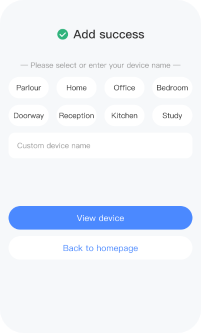
After the camera is successfully networked, it will appear online and you can create a group for the camera and set the name.
6-APN settings
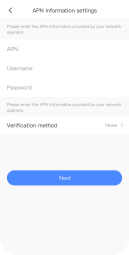
1. Click "APN information settings" to set APN parameters.
2. After the setting is complete, click "Next".
3. Short press the reset button on the device for one second. The device's yellow indicator light will flash or the device will prompt a sound of "Beep", which means it has entered the APN setting mode.
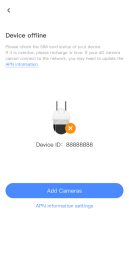
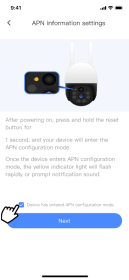
· If the 4G camera is offline, please try to set APN.
· Please contact your SIM card operator for APN information.
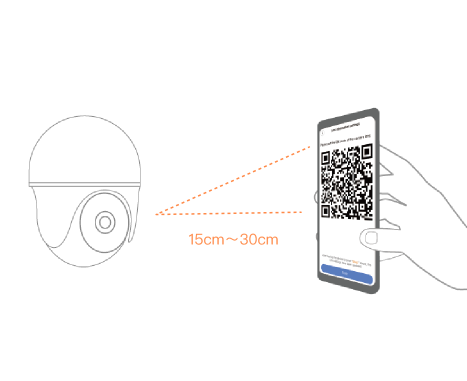
4. The APP will generate the QR code and then use the device to scan this QR code.
5. After the device identifies the QR code successfully, it will prompt a notification sound.
Attentions
· Concerning Micro SD card recording, when the recording capacity reaches the upper limit, the earliest recording file of the recording event will be automatically overwritten.
· Long-term use in the unconventional environment (high temperature, high humidity, the large amount of dust or smoke, etc.) may damage the camera.
· V380 Pro APP and device firmware will be updated from time to time. For your best experience, please update the APP and upgrade the device firmware in time.
Cloud Service
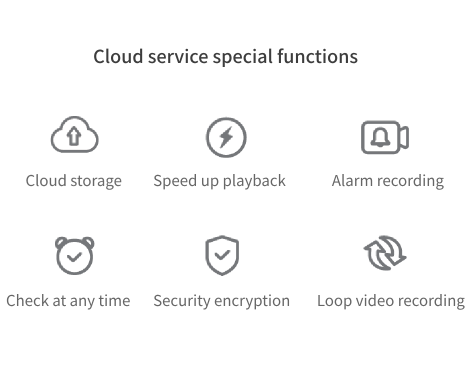
You can enjoy these special functions after subscribing the cloud service on the [Cloud] interface of the V380 Pro APP.
Cloud service special functions
*Cloud service is a value-added service that requires payment.